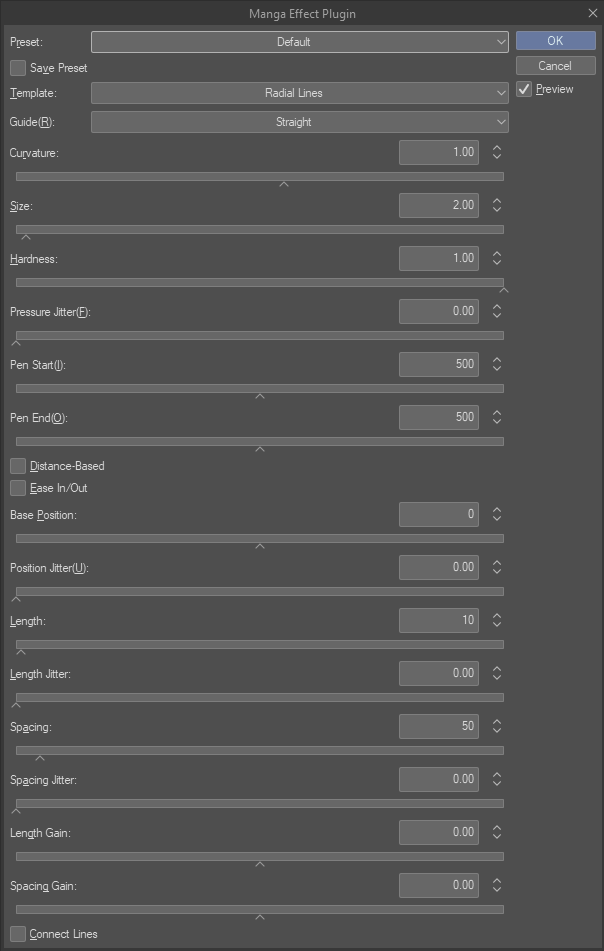
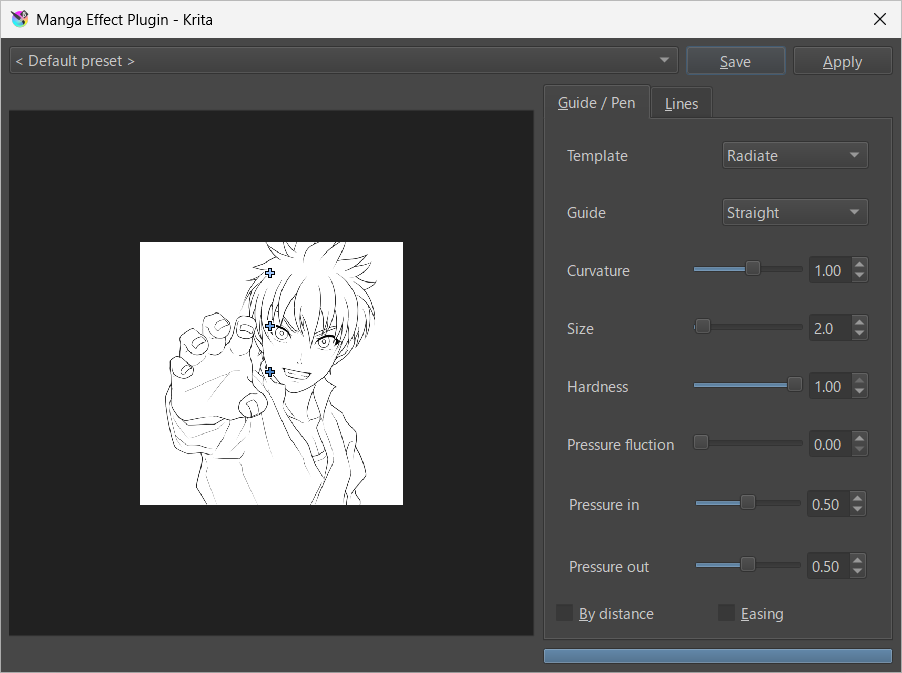
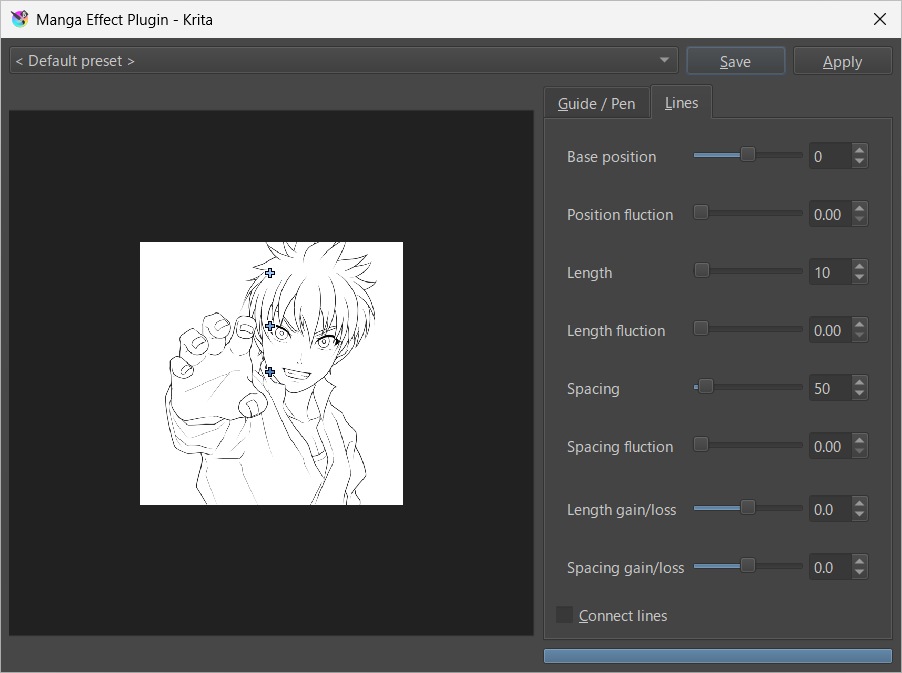
Settings dialog
While there are layout differences in Krita, such as switching via tab pages, there are no differences in the settings available.
In Clip Studio Paint EX, coordinate specification is done on the editing canvas, while in Krita, it is specified in the area where the thumbnail is displayed within the dialog.
In Krita 5.3 and later, dragging the thumbnail image area moves the canvas display position. Similarly, the mouse wheel changes the magnification, and the middle mouse button resets the magnification.
Krita 5.2 and earlier don't support changing the display area via mouse dragging.
Changing a parameter value triggers real-time rendering. Once you achieve the desired result, click the "OK(Apply)" button to complete filter application. To cancel midway, click "Cancel" or simply close the dialog.
To save the current parameter settings, in Clip Studio Paint EX, check "Save Preset" before applying the filter. The name will be the date when the filter was applied.
In Krita, click the "Save" button. In the dialog that appears, enter any name in the text field and click the "OK" button to save the settings with that name as the filename.
The save directory is fixed to the location below, but the filename can be changed later.
| Windows | C:\Users\(User Name)\AppData\Roaming\tnksoft\meplugin\preset |
| macOS | ~/Library/Application Support/tnksoft/meplugin/preset |
Saved preset files are listed in the list box at the top left of the dialog. Selecting an item from the list immediately loads its values and applies the filter.