Parameter contents
Template
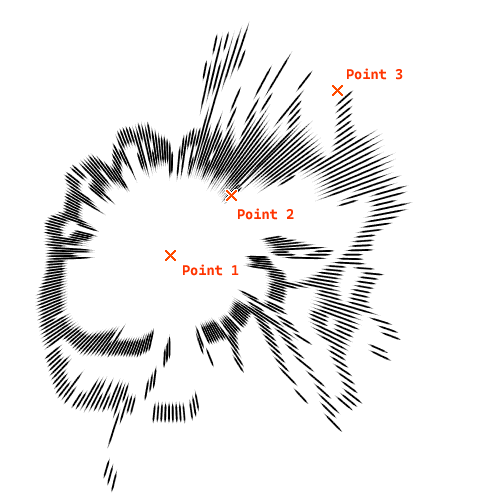
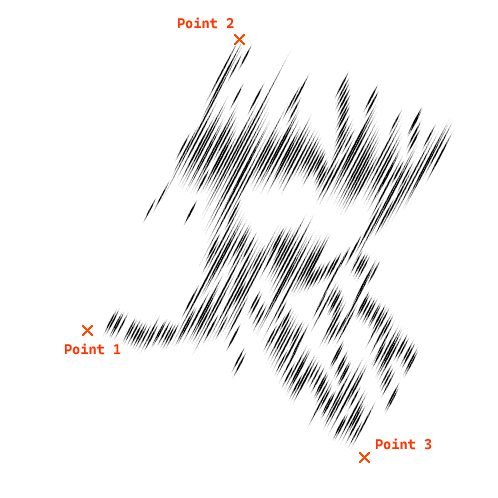
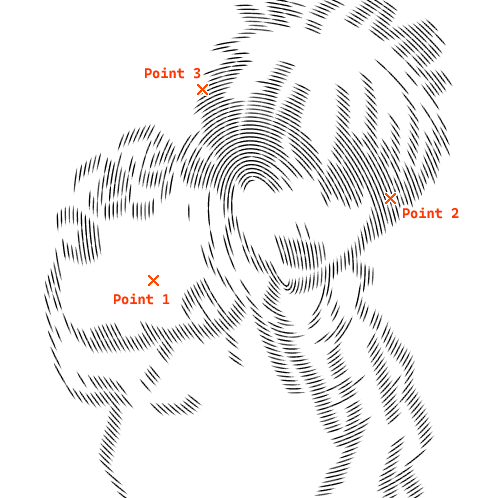
Specifies the effect type. Depending on the template content, the role of the point indicated by the pointer point (blue [+] sign in Krita, red [x] sign in Clip Studio) within the canvas changes.
Converging Lines : Lines are drawn radially from pointer 1 within the range of pointers 2 and 3.
Parallel Lines : A line segment connecting pointer 1 to pointer 2 is drawn continuously from pointer 1 towards pointer 3.
Concentric Circles : Continuously draws outward and inward based on an ellipse centered at pointer 1 with diameter pointer 2, passing through pointer 3 (if a circle passing through pointer 3 cannot be calculated, it always becomes a perfect circle).
Guide
Specifies the line shape. Standard options include "Straight Line" and "Curve", but you can also create custom rulers.
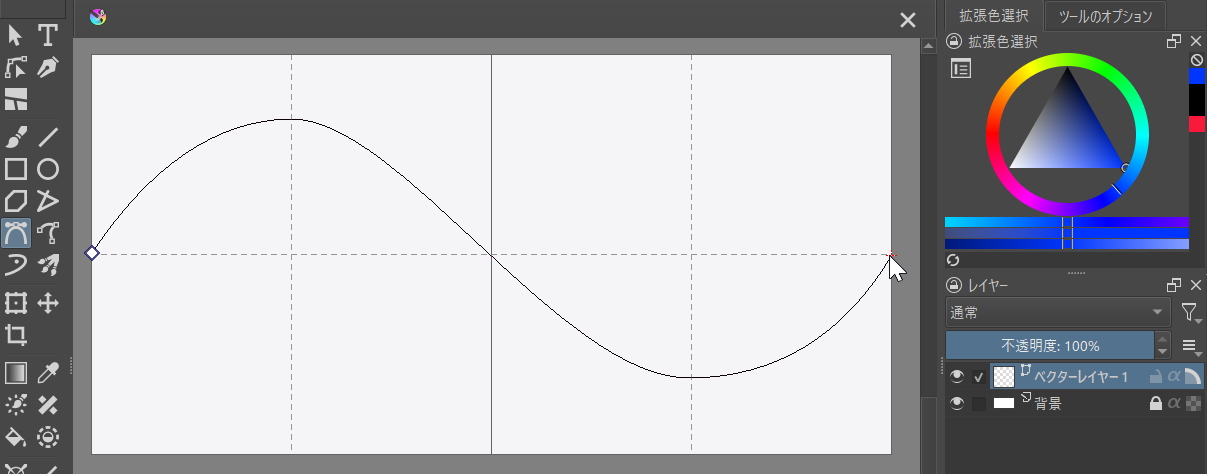
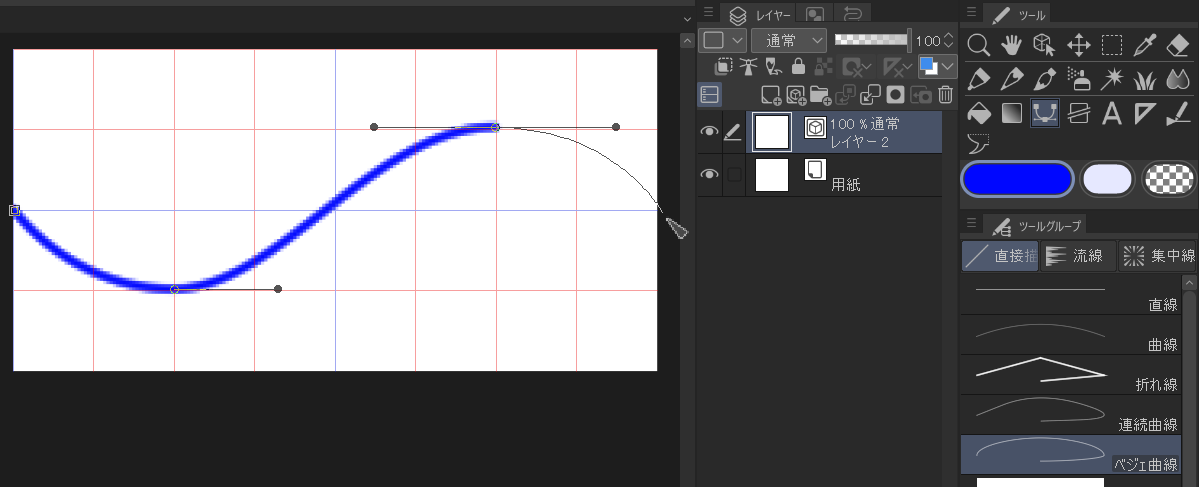
To create an original ruler, use the line tool (such as polylines or Bézier curves; closed shapes like rectangles or polygons cannot be used) to draw from "left to right". The color and thickness specified for this path do not affect the filter result.
With this vector layer selected, execute the following items from the menu to save it as an SVG file in the "meplugin/guide" directory (same location as presets).
| Krita | Layer -> Import/Export -> Save Vector Layer as SVG |
| Clip Studio | File -> Other Export -> Vector Export |
Curvature
Adjusts the strength of the guide. For example, on a curve, a higher value makes it bend more sharply. Negative values reverse the direction, while 0 always results in a straight line.
pen
Size
Change the pen thickness. The unit is pixels; the higher the value, the thicker the line.
Hardness
Change the pen hardness. The lower the value, the thinner the line.
Pressure fluction
Randomly changes the pen width. The higher the value, the greater the variation.
Pressure in/out
The higher the value, the sharper the line's tip (endpoint) becomes. If the "Specify by distance" option (described below) is not checked, the value is relative to the line's length (where 1000 equals 100%).
By distance
If this box is checked, the value specified in the field above will be used as the pixel-based length for both In and Out.
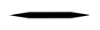
Easing
The transition in pen thickness will be smoother.
 |
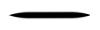 |
| Easing off | Easing on |
Line
Base position
This shifts the starting point for drawing the line. A positive value moves the line away from the reference point, while a negative value moves it closer to the reference point.
Position fluction
Randomly changes the starting position. The larger the value, the greater the variation.
Length
Extends the length of the line being drawn.
Length fluction
Randomly changes the length of the line. The larger the value, the greater the variation.
Spacing
Adjust the spacing between lines. The larger the value, the wider the spacing.
Spacing fluction
Randomly adjusts the spacing between lines. The larger the value, the greater the variation.
Length gain(loss)
The length of the line changes depending on the distance from the reference point. For positive values, the line becomes longer as it moves away from the reference point; for negative values, it becomes shorter as it moves away from the reference point.
Spacing gain(loss)
The spacing between lines varies depending on the distance from the reference point. With a positive value, the spacing increases as the distance from the reference point increases; with a negative value, the spacing decreases as the distance from the reference point increases. This setting does not apply to the "Radial" layout.
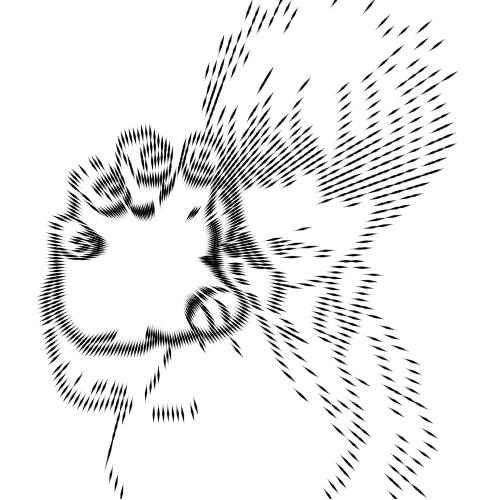
Connect Lines
Overlapping line segments will be merged and drawn as a single continuous line.
Overlapping line segments will be merged and drawn as a single continuous line.
 |
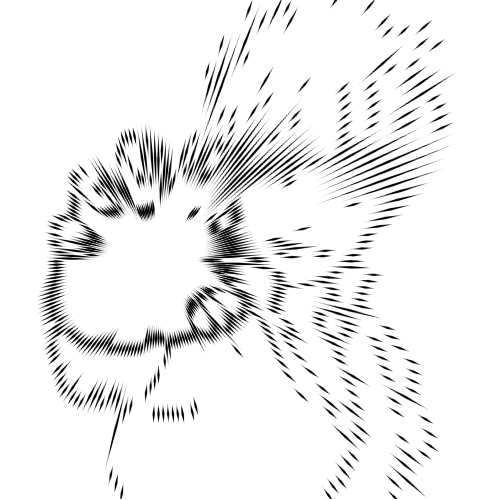 |
| Don't connect | Connect |